| STEP |
PHASE |
SCREEN |
DESCRIPTION |
|
Click any image to enlarge |
Click any image to enlarge |
|
|
|
|
| 1 |
Start |
|
| 1 |
Read XE-Filter requirements |
 INSTALLING XE-FILTER v4 SPECIAL CASE
 |
| 2 |
Download XE-Filter.ZIP |
|
|
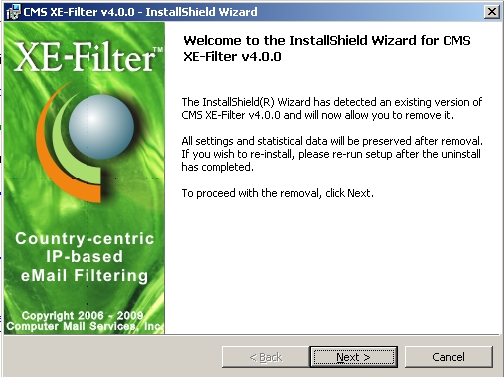
Installing XE-Filter v4 on
top of an existing v4 site removes the existing
installation but preserves all settings and data. |
|
| 3 |
Unzip |
| 4 |
Run "setup.exe" |
| 5 |
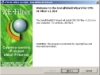
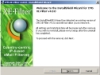
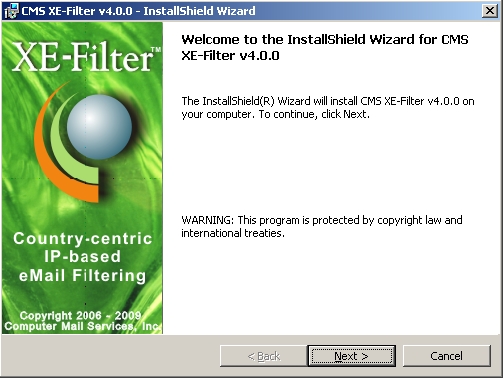
The "Welcome" screen is displayed. Press "NEXT" |
|
|
|
|
|
| 2 |
License |
|
| 1 |
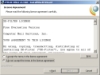
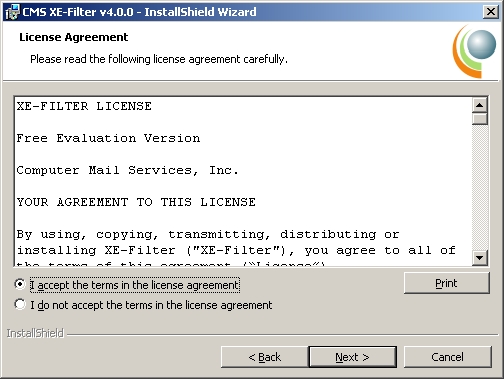
The "License Agreement" screen is displayed |
| 2 |
Read the License Agreement |
| 3 |
Select either the "I accept" or "I do not accept" button |
| 4 |
Press the "NEXT" button |
|
|
|
|
|
| 3 |
Folder |
|
| 1 |
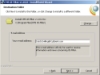
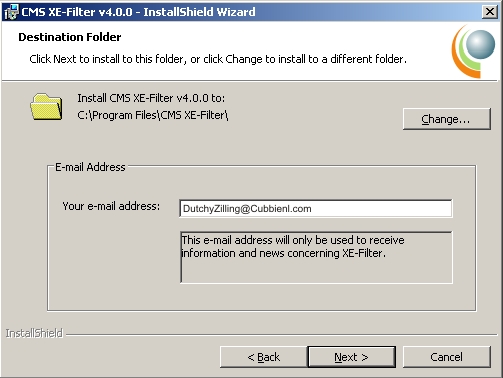
The "Destination Folder" screen is displayed |
| 2 |
Either leave the default path or press "Change" to enter a
new one |
| 3 |
Enter the Contact/Registration eMail address |
| 4 |
Press the "NEXT" button |
|
|
|
|
|
| 4 |
Ready |
|
| 1 |
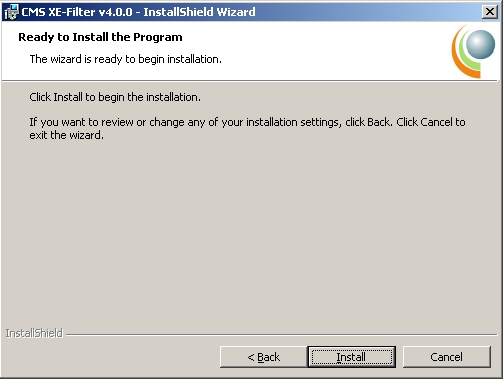
The "Ready to Install" screen is displayed |
| 2 |
Press the "INSTALL" button |
| |
|
| |
|
|
|
|
|
|
| 5 |
Installing |
|
| 1 |
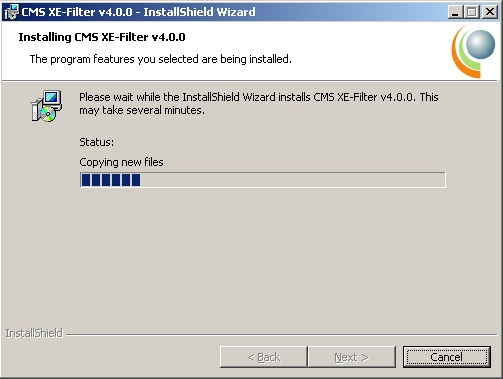
The "Installing" screen is displayed |
| 2 |
The status bar gives a visual image of the install |
| 3 |
When complete, press the "NEXT" button |
| |
|
|
|
|
|
|
| 6 |
Complete |
|
| 1 |
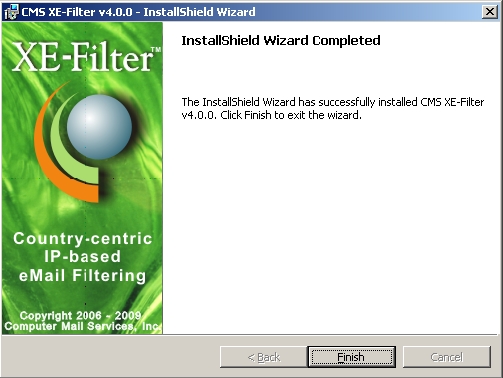
The "Complete" screen is displayed |
| 2 |
Press the "FINISH" button |
| |
|
|
|
|
|
|
|
Click any image to enlarge |
|

 BL-Monitor